OpenLMI At Red Hat Summit

OpenLMI will be represented at the upcoming Red Hat Summit, which is being held in San Francisco from April 14-17.

Stephen Gallagher and I will be giving a talk on OpenLMI on Tuesday, April 15, at 10:40am. This talk will provide an overview of OpenLMI, cover its functional capabilities, and demonstrate using the LMIShell CLI and Scripts to accomplish common management tasks.

There will also be an OpenLMI demo in the Red Hat Pavilion on Wednesday, April 16, from 1:00pm-3:00pm. Drop by to see OpenLMI in action and to ask questions.

Finally, we would love to have the opportunity to discuss OpenLMI with you. Contact me to see about scheduling time for a meeting. This is a great chance to meet with the experts and make sure that your needs and requirements are being addressed.

Posted in System Management | Leave a comment

OpenLMI CLI Interface Updates

Exciting news – a major update to the OpenLMI CLI is available! The new CLI adds support for configuring networks, reworks the storage commands, provides a command hierarchy in the interactive shell, and includes internal improvements.

Let’s start with the new LMI command structure. Use lmi help to see the new interface:

lmi> help

Static commands

===============

EOF exit help

Application commands (type help <topic>):

=========================================

file group hwinfo net power service storage sw system user

Built-in commands (type :help):

===============================

:.. :cd :pwd :help

One obvious change is that all of the storage related commands have been combined into a single top level storage command – you now begin all storage operations with the keyword storage. At the same time, a new shell option supports command hierarchy. If you are going to be entering a series of storage commands, you can “move down” to that level by using the “:cd” command. You move back up to a higher level in the command hierarchy by using the “:..” command.

lmi> :cd storage

>storage>

You can now enter storage commands directly – for example, list available storage devices:

lmi> :cd storage

>storage>

>storage> list

Name Size Format

/dev/sda 320072933376 MS-DOS partition table

/dev/mapper/luks-fe998f70-9da9-4049-88db-47d9db936b82 319545147392 physical volume (LVM)

/dev/sda1 524288000 ext4

/dev/sda2 319547244544 Encrypted (LUKS)

/dev/mapper/vg_rd230-lv_home 259879075840 ext4

/dev/mapper/vg_rd230-lv_root 53687091200 ext4

/dev/mapper/vg_rd230-lv_swap 5972688896 swap

>storage>

In a change from the previous version, the storage list command now includes only the friendly device name. This means you no longer need a 200 column terminal window to get all the information on one like.

Like the previous version of the storage command, you can get detailed information on each device. Entering storage show will list details for all storage devices. Entering storage show devicename will give detailed information for just that device. For example, to get details on device sda:

>storage> show sda

Name Value

/dev/disk/by-id/ata-HITACHI_HTS725032A7E630_TF1401Y1G0EZAF:

Name Value

Type Generic block device

DeviceID /dev/disk/by-id/ata-HITACHI_HTS725032A7E630_TF1401Y1G0EZAF

Name /dev/sda

ElementName sda

Total Size 320072933376

Block Size 512

Data Type Partition Table

Partition Table Type MS-DOS

Partition Table Size (in blocks) 1

Largest Free Space 0

Partitions /dev/sda1 /dev/sda2

>storage>

Another significant improvement is support for thin provisioning through the thinpool and thinlv commands:

>storage> help thinpool

Thin Pool management.

Usage:

thinpool list

thinpool create <name> <vg> <size>

thinpool delete <tp> …

thinpool show [ <tp> …]

Commands:

list List all thin pools on the system.

create Create Thin Pool with given name and size from a Volume Group.

delete Delete given Thin Pools.

show Show detailed information about given Thin Pools. If no

Thin Pools are provided, all of them are displayed.

Options:

vg Name of the volume group, with or without `/dev/` prefix.

tp Name of the thin pool, with or without `/dev/` prefix.

size Requested extent size of the new volume group, by default in

bytes. ‘T’, ‘G’, ‘M’ or ‘K’ suffix can be used to specify

other units (TiB, GiB, MiB and KiB) – ‘1K’ specifies 1 KiB

(=1024 bytes).

The suffix is case insensitive, i.e. 1g = 1G = 1073741824 bytes.

>storage> help thinlv

Thin Logical Volume management.

Usage:

thinlv list [ <tp> …]

thinlv create <tp> <name> <size>

thinlv delete <tlv> …

thinlv show [ <tlv> …]

Commands:

list List available thin logical volumes on given thin pools.

If no thin pools are provided, all thin logical volumes are

listed.

create Create a thin logical volume on given thin pool.

delete Delete given thin logical volume.

show Show detailed information about given Thin Logical Volumes. If no

Thin Logical Volumes are provided, all of them are displayed.

Options:

tp Name of the thin pool, with or without `/dev/` prefix.

size Size of the new logical volume, by default in bytes.

‘T’, ‘G’, ‘M’ or ‘K’ suffix can be used to specify other

units (TiB, GiB, MiB and KiB) – ‘1K’ specifies 1 KiB

(= 1024 bytes).

The suffix is case insensitive, i.e. 1g = 1G = 1073741824

bytes.

>storage>

We will take a look at other parts of the OpenLMI CLI commands in future articles.

Posted in System Management | Leave a comment

Manualizing System Management

Since the last article talked about Automating System Management, let’s look at Manualizing System Management. By this we mean enabling a human to perform system management tasks.

Why would we want to do this? There are several reasons. At a philosophical level, it is a person that determines that something is needed. An automated system can’t decide “hmm, we need an ERP system”. People are flexible and goal oriented – they understand Why leading to What culminating in How.

Using the example above:

  • A person can notice “hmm, we are having trouble getting all the parts needed to build our products to the right place at the right time”. (Why)
  • Again, it is a person that reasons “Aha! We need an ERP system.” (What)
  • At this point there are multiple ways to deploy the selected ERP system. (How)

In general, the first time you do a task you need to do it manually. Among other reasons, there are often surprises and issues that must be overcome. For any reasonably complex task it is almost impossible to determine all of the details, dependencies, unexpected inputs, corner cases,and systems that don’t behave exactly as expected without actually performing the task. If you are dealing with a unique configuration, such as a database server with local storage, it may make sense to set it up manually rather than spending the time automating the task. People play the ultimate role in system management. Automated systems are good at doing things over and over, but can’t do something the first time.

Once we assert that automated management tools can’t do everything by themselves, we need to look at what a SysAdmin needs. An effective system for manual system management has several characteristics:

  • It presents needed information, especially state and context. A SysAdmin is typically moving rapidly between a number of systems and working on a variety of tasks. It is important for them to be able to immediately discern which system they are on and what the current state of the system is.
  • It provides task oriented functions to perform the needed tasks. These functions should support the way the SysAdmin works, not expose the underlying implementation details.
  • It should be consistent across functions. For example, all functions should use a structure like “command, options, target” rather that having some that are structured “command, target, options”. Similarly, there should be a standard keyword for “create”, rather than a mixture of “create, make, add, instantiate, etc.” across various functions.
  • It helps the user. People are good at big picture goals, but have trouble remembering the exact details of dozens of low level functions. Computers are good at details, but don’t do big picture. It would be nice it people and computers could work together (the goal of User Experience designers everywhere!).

Manual management has a number of things in common with automated management. Both need to be able to talk to systems – a standardized remote API for management functions is a powerful foundation. In fact, once the low level infrastructure is in place you can build both automated and manual systems on top of it.

Ultimately we need a hybrid system for systems management – and integrated system that supports automation, scripting, CLI, and a graphical interface, all working together.


Posted in System Management | Leave a comment

Automating System Management

The future of system management is automation. As the number of systems and virtual machines being managed continues to grow, and the complexity of distributed applications increases, automation is the only way to keep things running smoothly.

Specifically, we need fine grain control of systems. This means that we can do things like configure local storage and networks, start and stop services, install software and patches, and so forth. We are looking at interactive control – making changes, seeing the results of these changes, and making further changes in response. Another aspect of interactive management is responding to changes in a system, such as a hardware failure, a file system running out of space, or perhaps an attack on a system. Interactive management may have a human in the loop or the interaction may be with a script, a program, or perhaps even an advanced expert system.

This interactive manipulation complements configuration management systems such as Puppet. With a configuration management system, you put a system into a known state. With interactive manipulation you work with the system until it does what you want it to. You will usually want to use both approaches, since each has strengths and weaknesses.

This automation requires several things:

  • The ability to query a system. This includes determining its configuration (HW and SW) and current state and status. As an example, if you are monitoring the temperature of a system, is the lm-sensors service installed, configured, enabled, and currently running?
  • The ability to change a system. This includes things like configuring storage, configuring networks, changing firewall rules, and installing software.
  • Generating alerts when something interesting happens. It is not effective to poll 1,000 systems looking for items of interest; it is necessary for the 1,000 systems to tell you if something you are interested in happens. Going back to the lm-sensors example, you might want to trigger an alert when the cpu temperature exceeds 150 degrees F. You might also want to trigger an alert if the lm-sensors service fails.
  • Remote Operation. In general, you don’t want to put a complete management system on each managed system. You want to have a centralized management capability containing the business logic which manages large numbers of systems.

In designing a system to support these elements you end up with a design that has a management console (or management program or management framework) which initiates operations on remote systems. These operations are performed by a program on the remote system. A program that is intended to perform an operation when called from another system is commonly called an agent.

It is straightforward to create an agent to perform a specific task. This tends to result in the creation of large numbers of specialized agents to perform specific tasks. Unfortunately, these agents don’t always work well with each other, come from multiple sources, have to be individually installed, and produce a complex environment.

Building on the Automation Requirements, what if we create:

  • A standard way to query systems.
  • A standard way to change a system.
  • A standard set of alerts.
  • A standard remote API to perform these operations.
  • A standard infrastructure to handle things like communications, security, and interoperation.
  • All included with the operating system and maintained as part of the OS.

Building a system like this means building a standard set of tools and interfaces that can be shared by any application that needs to interact with the managed system. Having a standard API means that applications and scripts can easily call the functions that they need to use. Having a common infrastructure greatly simplifies interoperation and makes it much easier to develop management tools that touch multiple subsystems.

Including these tools with the OS means that applications have a known set of tools that they can rely on. It also means that the tools are updated and maintained to keep in sync with the OS, that security issues are addressed, and that there is a single place to report problems.

A system that implements these capabilities provides a solid foundation for developing automated tools for system management. “Automated Tools” can mean anything from a sophisticated JBoss application using Business Rules and Business Process Management to automate responses to a wide range of system alerts to a custom script to create a specific storage configuration.

A system that implements these capabilities also provides a great foundation for building interactive client applications – client applications that use a command line interface, that are built on scripts, or even a GUI interface.

These are the guiding principles for OpenLMI.

Posted in System Management | Leave a comment

Using LMI Commands

The LMI CLI command processor is invoked by entering “LMI”. You can use it to enter either a single command or multiple commands. Entering “LMI” with no arguments puts you into interactive mode until you enter CTRL-D to exit the CLI processor. In interactive mode you can enter multiple LMI commands.

In general you have to provide the target system, user, and password for each LMI command. This can be a nuisance if you are entering multiple LMI commands – in this case it is best to go into the LMI command processor’s interactive mode. You will have to enter the authentication information once, and the command processor will remember it for the rest of the session. The exception to this rule is when you are managing the local system and are logged in with root privileges.

Lets start with a simple example, getting a list of storage on the local system system. This is done by entering the command:

$ lmi storage list

Entered this way, the lmi command processor will default to localhost for the system and prompt you for the username and password to use (unless you have root privileges). The output of the command is printed to the screen:

Size Format

/dev/disk/by-id/dm-name-luks-ffc4ec65-f140-4493-a991-802ad6fa20b4 /dev/mapper/luks-ffc4ec65-f140-4493-a991-802ad6fa20b4 luks-ffc4ec65-f140-4493-a991-802ad6fa20b4 249531727872 physical volume (LVM)

/dev/disk/by-id/ata-ST3250410AS_6RY0WKF9 /dev/sda sda 250059350016 MS-DOS partition table

/dev/sr0 /dev/sr0 sr0 250059350016 Unknown

/dev/disk/by-id/ata-ST3250410AS_6RY0WKF9-part1 /dev/sda1 sda1 524288000 ext4

/dev/disk/by-id/ata-ST3250410AS_6RY0WKF9-part2 /dev/sda2 sda2 249533825024 Encrypted (LUKS)

/dev/disk/by-id/dm-name-fedora-home /dev/mapper/fedora-home home 191931351040 ext4

/dev/disk/by-id/dm-name-fedora-root /dev/mapper/fedora-root root 53687091200 ext4

/dev/disk/by-id/dm-name-fedora-swap /dev/mapper/fedora-swap swap 3909091328 swap

Note that the information includes the user friendly name – sda, sda1 and sda2 – as well as the persistent id’s. All of the LMI Storage commands accept any of the device id’s. The persistent id’s are more robust on servers, where you can run into situations where the user friendly names change. This can occur when you add or remove devices or controllers or move disks to different ports on an hba.

If you are going to enter multiple LMI commands, you should enter the LMI shell by entering

$ lmi

lmi>

At this point you can find out what commands are available by entering “?”.

lmi> ?

Documented commands (type help <topic>):

========================================

EOF help
Application commands (type help <topic>):

=========================================

exit help lf mount partition-table service sw

fs hwinfo lv partition raid storage vg

You can ask for more help on these commands by entering help <command>, for example:

lmi> help storage

Basic storage device information.

Usage:

storage list [ <device> …]

storage depends [ –deep ] [ <device> …]

storage provides [ –deep ] [ <device> …]

storage show [ <device> …]

storage tree [ <device> ]

lmi>

Let’s now show an example of changing system state with LMI. We will use the lmi service commands to list all available services, show service status, and start and stop a service. First, run lmi service list to list all available services (this takes time to run and produces a long output, so it isn’t shown here). Then use the lmi service show, stop, and start commands:

lmi> service show cups.service

Name=cups.service

Caption=CUPS Printing Service

Enabled=True

Active=True

Status=OK

Now we can stop the cups service and then check its status:

lmi> service stop cups.service

lmi> service show cups.service

Name=cups.service

Caption=CUPS Printing Service

Enabled=True

Active=False

Status=Stopped

Finally, start the cups service and then check its status:

lmi> service start cups.service

lmi> service show cups.service

Name=cups.service

Caption=CUPS Printing Service

Enabled=True

Active=True

Status=OK

lmi>

To use the LMI command processor against a remote system with OpenLMI installed, use the -h (host) option:

$ lmi -h managedsystem.mydomain.org

> service show cups.service

username: pegasus

password:

Name=cups.service

Caption=CUPS Printing Service

Enabled=True

Active=True

Status=OK

This should be enough to get you started using LMI Commands.

Posted in System Management | Leave a comment

Update: LMIShell for RHEL 7 Beta

Key characteristics of an Enterprise Linux like Red Hat Enterprise Linux are long term support and stable interfaces. The OpenLMI Providers are designed to be stable, which allowed them to be included in the RHEL 7 Beta.

On the other hand, the LMIShell scripts and commands are rapidly evolving and changing. This means that it is appropriate to include them in environments that allow changes, like Fedora, but it is too early to include them in RHEL. As a result, the LMIShell scripts and commands are packaged outside of the RHEL 7 Beta.

The result is that the RHEL 7 beta includes all software for OpenLMI on managed systems. On the client side, it includes the LMIShell infrastructure, but does not include the LMIShell scripts or commands.

For RHEL 7 Beta, the LMIShell scripts and commands are available from the openlmi.org website as an external repository. To install the LMIShell scripts and commands:

First, download http://www.openlmi.org/sites/default/files/repo/rhel7/noarch/openlmi-scripts.repo to /etc/yum.repos.d on your local system.

Then yum install “openlmi-scripts*”. (Note the quotes around “openlmi-scripts*” and the asterisk at the end of scripts. Both of these must be included for the install to work correctly.)

These scripts require openlmi-tools, which is included as a dependency and is automatically installed when you install the scripts.

To test your installation, run one of the LMIShell commands, such as lmi hwinfo.

Posted in System Management | 1 Comment

OpenLMI on RHEL 7 Beta

Getting Started

OpenLMI is under active development, and its first public release on Red Hat Enterprise Linux is with the Red Hat Enterprise Linux 7 Beta.

Install OpenLMI

Install

OpenLMI can be installed by installing the openlmi package. This is a metapackage that installs the OpenLMI infrastructure and a base set of OpenLMI Providers. Additional Providers and other packages can be installed later.

$ yum install openlmi

Start the CIMOM

The OpenLMI CIMOM runs as a service. For security reasons, services are not automatically started. You will need to start the CIMOM manually, using the command:

$ systemctl start tog-pegasus.service

To have the service automatically started when the system boots, use the command:

$ systemctl enable tog-pegasus.service

Firewall

You will then need to open the appropriate firewall ports to allow remote access. This can be done from the firewall GUI by selecting the WBEM-https service, or can be done from the command line by entering:

$ firewall-cmd --add-port 5989/tcp

You will probably want to open this port permanently:

$ firewall-cmd --permanent --add-port 5989/tcp

SELinux

You may need to set SELinux to permissive mode:

$ setenforce 0

Remote Access

You next need to configure the users for remote access. The Pegasus CIMOM can accept either root or pegasus as users (configuring Pegasus to use other users is beyond the scope of this article). You can do one or both of the following actions; doing both will enable using OpenLMI calls using either root or pegasus as the user.

  • The user pegasus is created – without a password – when you install OpenLMI. To use the pegasus user you need to add a password by using the command passwd pegasus (as root) and then giving it a password.
  • Alternatively, you can edit the Pegasus access configuration file to allow root access:
    • Edit the file /etc/Pegasus/access.conf
    • Change the line “ALL EXCEPT pegasus:wbemNetwork” to “ALL EXCEPT root pegasus:wbemNetwork” and save the file.

Install OpenLMI Client

Client Software (updated)

The OpenLMI client consists of the LMIShell environment and a set of system management scripts. The OpenLMI client is installed on the client system – that is, the system that will be used to manage other systems. You don’t need to install the OpenLMI client on managed systems, and you don’t need to install OpenLMI Providers on the client system.

The easiest way to use LMIShell is to use Fedora 20 for your client system – Fedora 20 includes LMIShell and all the management scripts. These management scripts are under active development, and their interfaces were not considered sufficiently mature to include in RHEL 7 Beta. They should be included in a future release.

There are two parts to the client tools provided by the OpenLMI project. The first is the LMIShell, which is a powerful, python-based scripting environment made available in the openlmi-tools package.

You can install this package with the command:

$ yum install openlmi-tools

The second part of the client tool is the OpenLMI scripts, which are a set of Python scripts and simple shell command wrappers (using the ‘lmi’ metacommand tool) to provide very simple interaction with OpenLMI-managed systems. Because these scripts are actively evolving they are not included in the RHEL 7 Beta, and must be downloaded and installed separately:

First, download http://www.openlmi.org/sites/default/files/repo/rhel7/noarch/openlmi-scripts.repo to /etc/yum.repos.d on your local system.

Then yum install “openlmi-scripts*”. (Note the quotes around “openlmi-scripts*”.)

These scripts require openlmi-tools, which is included as a dependency and is automatically installed when you install the scripts if it has not already been installed.

Server Certificate

In order to access a remote LMI managed system, you will need to copy the Pegasus server certificate to the client system. This can be done with:

# scp root@managed-machine:/etc/Pegasus/server.pem
/etc/pki/ca-trust/source/anchors/managed-machine-cert.pem

Where “managed-machine” is the name of the managed system. You then need to:

# update-ca-trust extract

Try It Out

At this point you should be ready to go! Test the installation by running an LMI command from a system with the LMIShell client and scripts installed; this sample will be explained in future articles (replace managed-system with the actual system name):

# lmi -h managed-system
lmi> hwinfo cpu
username: pegasus
password:

CPU: AMD Phenom(tm) 9550 Quad-Core Processor
Topology: 1 cpu(s), 1 core(s), 1 thread(s)
Max Freq: 3000 MHz
Arch: x86_64
lmi>

Posted in System Management | 1 Comment

OpenLMI Certificate Lessons

I was playing with OpenLMI – I mean, testing OpenLMI – on my home network, and learned that I need to upgrade my local setup.

I don’t have a local nameserver, and have fallen into the (bad) habit of not assigning hostnames to temporary testbed systems and addressing them by IP address. This means that these systems have the default name of “localhost.localdomain”.

I was having OpenLMI connection problems. With the help of some patient engineers, we discovered that this was due to a SSL security certificate validation failure which was occuring because the connection hostname didn’t match the certificate subject.

There are several ways to avoid this:

  • The right way to do is is to have a proper domain environment such as FreeIPA or MS Active Directory managing your certificates. We strongly recommend this approach.
  • At a minimum you should should have a nameserver and make sure you assign hostames to all your systems, even the temporary testbeds. When you do this the manual certificate management procedures described in the installation article will work.
  • If you are still having trouble, you can avoid checking the certificates by using the noverify option to bypass certificate validation:
    • lmi -h system.domain.org –noverify
    • lmishell –noverify
      c = connect(“systemname”,”username”,”password”)

It should go without saying, but don’t do this in production!

Note that if you change the hostname on a system you will need to regenerate the certificates. Changing hostname is more likely to happen in a test and demo environment than in a production environment.

If you are running both OpenLMI and LMIShell on the same system you have different behaviors when logged in as root. When logged in as root and accessing the local system, OpenLMI bypasses certificate authentication – you already have full access to the system! If you are not logged in as root, you will be prompted for username and password. In general, the best practice is to use the pegasus user with OpenLMI.

Posted in System Management | Leave a comment

Installing OpenLMI and LMIShell

Getting Started

The best place to start is with Fedora 20. OpenLMI is under active development, and there have been significant changes since the earlier releases in F18 and F19. These instructions were tested against the Fedora 20 final beta.

Install OpenLMI

Install

OpenLMI can be installed by installing the openlmi package. This is a metapackage that installs the OpenLMI infrastructure and a base set of OpenLMI Providers. Additional Providers and other packages can be installed later.

$ yum install openlmi

Start the CIMOM

The OpenLMI CIMOM runs as a service. For security reasons, services are not automatically started. You will need to start the CIMOM manually, using the command:

$ systemctl start tog-pegasus.service

To have the service automatically started when the system boots, use the command:

$ systemctl enable tog-pegasus.service

Firewall

You will then need to open the appropriate firewall ports to allow remote access. This can be done from the firewall GUI by selecting the WBEM-https service, or can be done from the command line by entering:

$ firewall-cmd --add-port 5989/tcp

You will probably want to open this port permanently:

$ firewall-cmd --permanent --add-port 5989/tcp

SELinux

You may need to set SELinux to permissive mode:

$ setenforce 0

Remote Access

You next need to configure the users for remote access. The Pegasus CIMOM can accept either root or pegasus as users (configuring Pegasus to use other users is beyond the scope of this article). This is done my making one or both of the following changes on the managed system:

  • The user pegasus is created – without a password – when you install OpenLMI. To use the pegasus user you need to add a password by using the command passwd pegasus (as root) and then giving it a password.
  • Alternatively, you can edit the Pegasus access configuration file to allow root access:
    • Edit the file /etc/Pegasus/access.conf
    • Change the line “ALL EXCEPT pegasus:wbemNetwork” to “ALL EXCEPT root pegasus:wbemNetwork” and save the file.

Install the OpenLMI Client

Client Software

The OpenLMI client consists of the LMIShell environment and a set of system management scripts. The OpenLMI client is installed on the client system – that is, the system that will be used to manage other systems. You don’t need to install the OpenLMI client on managed systems, and you don’t need to install OpenLMI Providers on the client system.

The easiest way to install it is to install the openlmi-scripts, which brings in openlmi-tools:

$ yum install openlmi-scripts*

If you are using a pre-release version of Fedora 20, the openlmi-scripts files may still be in the updates-testing repository; if so, use:

$ yum –enablerepo=updates-testing install openlmi-scripts*

Server Certificate

In order to access a remote LMI managed system, you will need to copy the Pegasus server certificate to the client system. This can be done with:

# scp root@managed-machine:/etc/Pegasus/server.pem
/etc/pki/ca-trust/source/anchors/managed-machine-cert.pem

Where “managed-machine” is the name of the managed system. You then need to:

# update-ca-trust extract

Try It Out

At this point you should be ready to go! Test the installation by running an LMI command; this sample will be explained in future articles (replace <managed-machine> with the actual machine name):

# lmi -h managed-machine
lmi> hwinfo cpu
username: pegasus
password:

CPU: AMD Phenom(tm) 9550 Quad-Core Processor
Topology: 1 cpu(s), 1 core(s), 1 thread(s)
Max Freq: 3000 MHz
Arch: x86_64
lmi>

Posted in System Management | 9 Comments

Introducing LMIShell – the OpenLMI Client

Our discussions so far have focused on the OpenLMI agents and infrastructure on managed systems. This makes sense, as the management infrastructure has to be in place before any client applications can use it. The client side has not been ignored – far from it! The OpenLMI developers have been busy building a client application that works the way Linux System Administrators do.

How do Linux SysAdmins work? Mainly through command line and scripts. The scripts may be written from scratch, but most commonly are modifications of existing scripts. There is a huge base of scripts and commands floating around the Internet, and the most common way to solve a problem is to “Google it” and copy commands or scripts.

When you look at the OpenLMI API, you will notice that it is powerful, complex, and low level. It is good for programmers, but not optimal for SysAdmins. And the WBEM interface is CIM-XML over https. You certainly can engage in hand-to-hand combat with XML, but most people don’t want to.

We were also aware that SysAdmins think in task oriented terms like “what drives are on this system?”, “partition drive sda with xfs”, “build a RAID 5 set from drives sdb, sdc, sdd and sde”, and so forth. SysAdmins want a high level, task oriented, extensible interface. Oh, and some consistency and documentation would be nice…

LMIshell has been developed to address these needs.

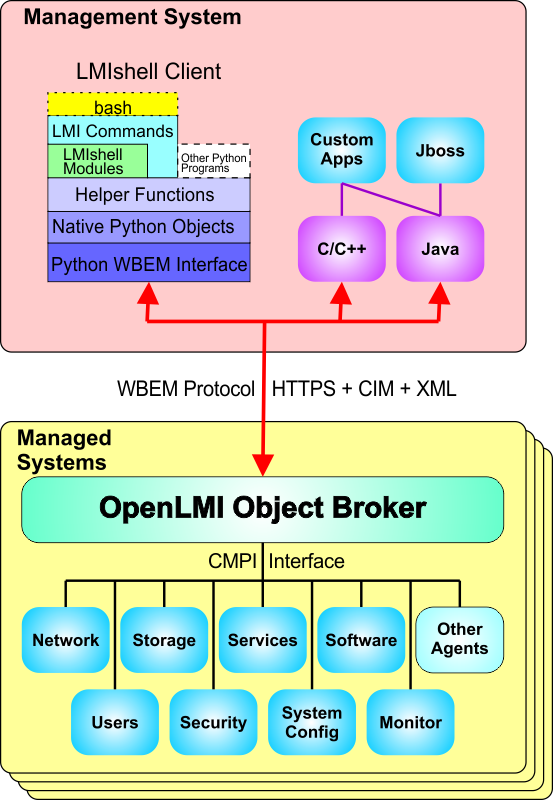
OpenLMI Architecture featuring LMIShell structure.

OpenLMI Architecture featuring LMIShell structure.

LMIshell is a client application/environment. It runs on a client system (which may also be the same as the managed system). A single LMIshell client can connect to multiple managed systems. Only LMIshell has to be installed on the client system; it is only necessary to install the Object Broker and Agents on managed systems. Likewise, there is no need to install LMIshell on managed systems.

LMIshell is based on Python, and can be used interactively or in a batch mode. Starting at the bottom of the stack, LMIshell handles the task of communicating with the OpenLMI Object Broker. It deals with the https communication and with parsing the CIM/XML. It does this by transforming everything into native Python objects – this means that OpenLMI classes become Python classes, that OpenLMI attributes become Python attributes, and that OpenLMI methods are invoked using Python method calls. This greatly simplifies working with OpenLMI.

The next thing implemented in LMIshell is a set of helper functions. We noticed that there are things that you do over and over when working with OpenLMI. For example, each OpenLMI API call sent across the WBEM communications interface specifies the target system and the username and password to use. This is a nuisance for people, but easy for computers. LMIshell helper functions let you establish a connection object containing this information, which is then used for all subsequent calls in that LMIshell session (until you change it to manage a different system).

The next challenge was to somehow change the low-level standards-based OpenLMI API into something SysAdmins would want to use. When wrestling with this challenge, we noticed that management scripts were commonly used as documentation and templates – SysAdmins would find a script that did something close to what they needed, study how it worked, and modify it. In fact, they would often do this instead of reading documentation.

We also noticed that management scripts were often written quickly to accomplish a specific task. As a result, they are not always well structured, might not have good error handling, would not correctly deal with corner cases, and were not always easy to extend. Further, scripts from different sources would have very different styles and conventions, complicating the task of joining them together.

Keeping these factors in mind, and considering that we were working in a full Python environment, we decided to develop OpenLMI Modules – SysAdmin focused, task oriented, extensible modules that hide the complexity of the low-level OpenLMI API.

These OpenLMI modules have multiple goals – do useful work, provide documentation and examples of how to use the low-level OpenLMI API to do a variety of tasks, provide a starting point for customization and extension, and to bring software engineering best practices to management scripts.

OpenLMI Modules are a great improvement in ease of use for SysAdmins, but they still balance power with complexity. For the greatest ease of use we have also implemented OpenLMI Commands – a high level CLI designed for use from the command line and in shell scripts.

OpenLMI Commands are the easiest to use and are designed for the most common tasks. OpenLMI Modules are designed to address a broad range of management tasks. The OpenLMI API provides a low level programming interface that delivers the full range and power of OpenLMI. Between them you have several ways to perform management tasks, and the ability to “mix and match” as needed.

Posted in System Management | Leave a comment